---
layout: default
title: Area Analysis
---
## [NanoLocz User Guide 1.3-1.4](https://george-r-heath.github.io/NanoLocz/docs/)  Installation - - Getting Started - - Saving Data \
Level - -
Detect - -
FineAlign - -
Localize\
Area Analysis - - Keyboard Shortcuts\
Simulation AFM - - YouTube Video Tutorials
# Area Analysis
This section explains how to perform area analysis in NanoLocz using threshold masking.
## Creating a Mask
The area analysis method in NanoLocz is based on calculating information within a Mask (area you want to analyse). For accurate analysis ensure that the images are levelled correctly before proceeding.
- To generate a Mask select the ‘Level Tab’ and set the (Mask – Z-Scale) option to Mask.
- Select the 'Method' you want to use to create the Mask. The default is ‘Histogram’ which is manual thresholding method. Thresholding can also be done automatically using the Otsu method.
- If using the ‘Histogram’ method, move the upper limit and lower limit sliders to select the area to be analysed.
- If there are multiple frames the Mask histogram will use all the heights from all frames in a movie.
- The example below shows masking of the lower regions using the histogram sliders.
 
## Creating a Mask
- Once the Mask has been selected -> press the 'Analyze Mask' button.
- This will bring up the following window with options to edit the Mask:\
**Minimum Size:** removes Mask regions with a pixel area below the value\
**Erode:** Reduces the size of objects by removing pixels on object boundaries.\
**Dilate:** Increases the size of objects by adding pixels to object boundaries.\
**Open:** Removes small objects by eroding and then dilating the mask.\
**Close:** Fills small holes by dilating and then eroding the mask.\
**Fill holes:** Fills in small holes within objects in the mask.\
- To edit the Mask select the values in each option and run **Update Mask**
- Once the Mask is ready select the parameters you want to include in the analysis and run 'Analyze Mask'.

- This will open the plotter window where you can access the data tables and plot data either as frame averages/totals or individual particles per frame.

## YouTube video on Leveling + Area Analysis
[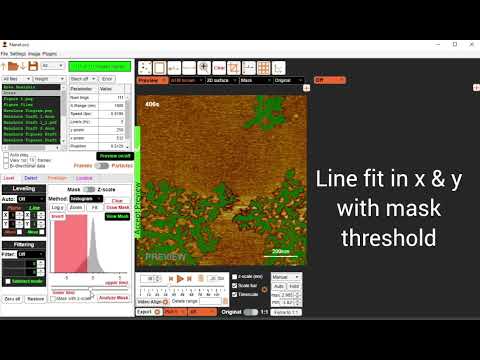](https://www.youtube.com/watch?v=R5D6T04M7Rc)
Installation - - Getting Started - - Saving Data \
Level - -
Detect - -
FineAlign - -
Localize\
Area Analysis - - Keyboard Shortcuts\
Simulation AFM - - YouTube Video Tutorials
# Area Analysis
This section explains how to perform area analysis in NanoLocz using threshold masking.
## Creating a Mask
The area analysis method in NanoLocz is based on calculating information within a Mask (area you want to analyse). For accurate analysis ensure that the images are levelled correctly before proceeding.
- To generate a Mask select the ‘Level Tab’ and set the (Mask – Z-Scale) option to Mask.
- Select the 'Method' you want to use to create the Mask. The default is ‘Histogram’ which is manual thresholding method. Thresholding can also be done automatically using the Otsu method.
- If using the ‘Histogram’ method, move the upper limit and lower limit sliders to select the area to be analysed.
- If there are multiple frames the Mask histogram will use all the heights from all frames in a movie.
- The example below shows masking of the lower regions using the histogram sliders.
 
## Creating a Mask
- Once the Mask has been selected -> press the 'Analyze Mask' button.
- This will bring up the following window with options to edit the Mask:\
**Minimum Size:** removes Mask regions with a pixel area below the value\
**Erode:** Reduces the size of objects by removing pixels on object boundaries.\
**Dilate:** Increases the size of objects by adding pixels to object boundaries.\
**Open:** Removes small objects by eroding and then dilating the mask.\
**Close:** Fills small holes by dilating and then eroding the mask.\
**Fill holes:** Fills in small holes within objects in the mask.\
- To edit the Mask select the values in each option and run **Update Mask**
- Once the Mask is ready select the parameters you want to include in the analysis and run 'Analyze Mask'.

- This will open the plotter window where you can access the data tables and plot data either as frame averages/totals or individual particles per frame.

## YouTube video on Leveling + Area Analysis
[](https://www.youtube.com/watch?v=R5D6T04M7Rc)