---
layout: default
title: Installation
---
## [NanoLocz User Guide 1.3-1.4](https://george-r-heath.github.io/NanoLocz/docs/)  Installation - - Getting Started - - Saving Data \
Level - -
Detect - -
FineAlign - -
Localize\
Area Analysis - - Keyboard Shortcuts\
Simulation AFM - - YouTube Video Tutorials
# Installation of NanoLocz
To download the file needed go to Releases.
Download one of the following files from `assets`.
## **Windows desktop app**
- Download: NanoLocz Windows Installer.exe file from [Releases](https://github.com/George-R-Heath/NanoLocz/releases).
- Unzip and run the exe to install.
- Admin rights likely needed to install.
- Note: loading on start-up of the app can take longer the 1st time running (up to 1 min) for Windows versions
## **Mac desktop app**
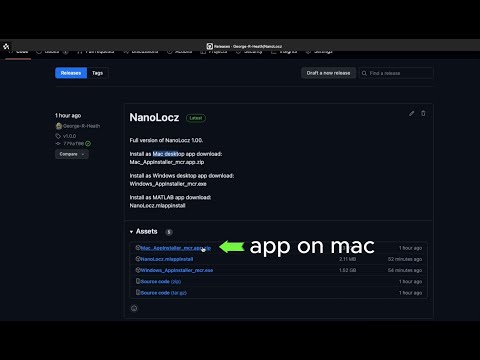
- Download NanoLocz_Mac_Installer_web.app.zip file from the assets in [Releases](https://github.com/George-R-Heath/NanoLocz/releases).
- Unzip and run the app file to install.
- You may get an "NanoLocz can't be opened because it is from an unidentified developer" message, which can be bypassed by right clicking on NanoLocz_Mac_Installer_web.app and selecting "Open" from the drop down menu.
- Note: loading on start-up of the app can take longer the 1st time running (up to 1 min) for Mac versions
Dealing with the macOS error **"is damaged and can’t be opened"** when installing software is common when the app isn't digitally signed and notarised by Apple.
How to fix by removing the specific security flag that macOS places on downloaded files (the `com.apple.quarantine` attribute).
### Step 1: Open Terminal
1. Open **Finder**.
2. Navigate to **Applications** $\rightarrow$ **Utilities**.
3. Double-click **Terminal** to launch it.
### Step 2: Run the `xattr` Command
This command removes the quarantine flag that triggers the "damaged" error.
1. In the Terminal window, type the following command exactly as shown, but **DO NOT** press Enter yet:
`sudo xattr -d com.apple.quarantine`
2. Open **Finder** and locate your downloaded installer file, which is likely named **`NanoLocz_1_4_Mac_Install.app`**.
3. **Drag and drop** the installer file directly from the Finder window into the Terminal window. This will paste the full and correct file path after the command you typed.
4. The final command should look similar to this (the path will be unique to your machine):
`sudo xattr -d com.apple.quarantine /Users/YourName/Downloads/NanoLocz_1_4_Mac_Install.app`
5. Press **Enter**.
6. The Terminal will prompt you for your **administrator password**. Type your password (no characters will appear on the screen as you type) and press **Enter** again.
### Step 3: Run the Installer
The security flag has now been removed. You can now try to open **`NanoLocz_1_4_Mac_Install.app`** directly from the Finder. It should launch the installer without the "damaged" error.
## Youtube video: Desktop standalone app Installation
[](https://m.youtube.com/watch?v=EfYbIf45AHo)
## **MATLAB app**
### 1. Install MATLAB
Download and install **MATLAB 2020 or later**. During installation, ensure the following toolboxes are selected:
- Curve Fitting Toolbox
- Image Processing Toolbox
- Signal Processing Toolbox
- Statistics and Machine Learning Toolbox
- Bioinformatics Toolbox
- Computer Vision Toolbox
### 2. Download NanoLocz
Download the appropriate NanoLocz installer from the
[GitHub Releases page](https://github.com/George-R-Heath/NanoLocz/releases):
- **MATLAB 2020–2024**
Use: `NanoLocz.1.41.pre2025_Matlab.mlappinstall`
- **MATLAB 2025 and later**
Use: `NanoLocz_v1_41_2025-2026_Matlab.mltbx`
### 3. Install NanoLocz
Double-click the downloaded `.mlappinstall` or `.mltbx` file.
- MATLAB will launch automatically if it is not already open.
- Follow the on-screen prompts to complete the installation.
### 4. Launch the App
Once installed, NanoLocz can be found in the **Apps** tab in MATLAB.
For quicker access:
- Right-click the **NanoLocz** app icon
- Select **Add to Favourites** and/or **Add to Quick Access Toolbar**
## Youtube video: MATLAB app Installation
[](https://m.youtube.com/watch?v=155rN7DYzu4)
Installation - - Getting Started - - Saving Data \
Level - -
Detect - -
FineAlign - -
Localize\
Area Analysis - - Keyboard Shortcuts\
Simulation AFM - - YouTube Video Tutorials
# Installation of NanoLocz
To download the file needed go to Releases.
Download one of the following files from `assets`.
## **Windows desktop app**
- Download: NanoLocz Windows Installer.exe file from [Releases](https://github.com/George-R-Heath/NanoLocz/releases).
- Unzip and run the exe to install.
- Admin rights likely needed to install.
- Note: loading on start-up of the app can take longer the 1st time running (up to 1 min) for Windows versions
## **Mac desktop app**
- Download NanoLocz_Mac_Installer_web.app.zip file from the assets in [Releases](https://github.com/George-R-Heath/NanoLocz/releases).
- Unzip and run the app file to install.
- You may get an "NanoLocz can't be opened because it is from an unidentified developer" message, which can be bypassed by right clicking on NanoLocz_Mac_Installer_web.app and selecting "Open" from the drop down menu.
- Note: loading on start-up of the app can take longer the 1st time running (up to 1 min) for Mac versions
Dealing with the macOS error **"is damaged and can’t be opened"** when installing software is common when the app isn't digitally signed and notarised by Apple.
How to fix by removing the specific security flag that macOS places on downloaded files (the `com.apple.quarantine` attribute).
### Step 1: Open Terminal
1. Open **Finder**.
2. Navigate to **Applications** $\rightarrow$ **Utilities**.
3. Double-click **Terminal** to launch it.
### Step 2: Run the `xattr` Command
This command removes the quarantine flag that triggers the "damaged" error.
1. In the Terminal window, type the following command exactly as shown, but **DO NOT** press Enter yet:
`sudo xattr -d com.apple.quarantine`
2. Open **Finder** and locate your downloaded installer file, which is likely named **`NanoLocz_1_4_Mac_Install.app`**.
3. **Drag and drop** the installer file directly from the Finder window into the Terminal window. This will paste the full and correct file path after the command you typed.
4. The final command should look similar to this (the path will be unique to your machine):
`sudo xattr -d com.apple.quarantine /Users/YourName/Downloads/NanoLocz_1_4_Mac_Install.app`
5. Press **Enter**.
6. The Terminal will prompt you for your **administrator password**. Type your password (no characters will appear on the screen as you type) and press **Enter** again.
### Step 3: Run the Installer
The security flag has now been removed. You can now try to open **`NanoLocz_1_4_Mac_Install.app`** directly from the Finder. It should launch the installer without the "damaged" error.
## Youtube video: Desktop standalone app Installation
[](https://m.youtube.com/watch?v=EfYbIf45AHo)
## **MATLAB app**
### 1. Install MATLAB
Download and install **MATLAB 2020 or later**. During installation, ensure the following toolboxes are selected:
- Curve Fitting Toolbox
- Image Processing Toolbox
- Signal Processing Toolbox
- Statistics and Machine Learning Toolbox
- Bioinformatics Toolbox
- Computer Vision Toolbox
### 2. Download NanoLocz
Download the appropriate NanoLocz installer from the
[GitHub Releases page](https://github.com/George-R-Heath/NanoLocz/releases):
- **MATLAB 2020–2024**
Use: `NanoLocz.1.41.pre2025_Matlab.mlappinstall`
- **MATLAB 2025 and later**
Use: `NanoLocz_v1_41_2025-2026_Matlab.mltbx`
### 3. Install NanoLocz
Double-click the downloaded `.mlappinstall` or `.mltbx` file.
- MATLAB will launch automatically if it is not already open.
- Follow the on-screen prompts to complete the installation.
### 4. Launch the App
Once installed, NanoLocz can be found in the **Apps** tab in MATLAB.
For quicker access:
- Right-click the **NanoLocz** app icon
- Select **Add to Favourites** and/or **Add to Quick Access Toolbar**
## Youtube video: MATLAB app Installation
[](https://m.youtube.com/watch?v=155rN7DYzu4)